Difference between revisions of "Users Page Manual 3.0"
Aldo.moreira (talk | contribs) |
Aldo.moreira (talk | contribs) |
||
| (32 intermediate revisions by the same user not shown) | |||
| Line 252: | Line 252: | ||
'''Review all the info for a device'''<br /> | '''Review all the info for a device'''<br /> | ||
Use the [[File:Info_3.png|middle|30px]] button and you will be taken to the [[User_Devices_Page_Manual_3.0|User devices page]] so you can review extended information about an specific device.<br /> | Use the [[File:Info_3.png|middle|30px]] button and you will be taken to the [[User_Devices_Page_Manual_3.0|User devices page]] so you can review extended information about an specific device.<br /> | ||
| − | |||
| − | |||
| − | |||
| − | |||
| − | |||
| − | |||
| − | |||
| − | |||
| − | |||
| − | |||
| − | |||
| − | |||
| − | |||
| − | |||
| − | |||
| − | |||
| − | |||
| − | |||
| − | |||
| − | |||
| − | |||
| − | |||
| − | |||
| − | |||
| − | |||
| − | |||
| − | |||
| − | |||
| − | |||
| − | |||
| − | |||
| − | |||
| − | |||
| − | |||
| − | |||
| − | |||
| − | |||
| − | |||
=== Commands Massive History === | === Commands Massive History === | ||
| Line 296: | Line 258: | ||
<br /> | <br /> | ||
| − | [[File:CommandMassiveHistoryBlock.jpg|thumb|Commands Massive History block|center| | + | [[File:CommandMassiveHistoryBlock.jpg|thumb|Commands Massive History block|center|1500px]] |
<br /> | <br /> | ||
| Line 305: | Line 267: | ||
This block allows to review all the emails that have been sent to a specific user as well as resending some of those emails. You can also us the [[Sent_Mail_Page_Manual_3.0|Sent Mail]] page to review extended information.<br /> | This block allows to review all the emails that have been sent to a specific user as well as resending some of those emails. You can also us the [[Sent_Mail_Page_Manual_3.0|Sent Mail]] page to review extended information.<br /> | ||
Click on the '''LOAD MESSAGES''' button so the different emails are loaded. | Click on the '''LOAD MESSAGES''' button so the different emails are loaded. | ||
| − | [[File: UserEmailCommunication3.png|thumb|Email communications block|center| | + | [[File: UserEmailCommunication3.png|thumb|Email communications block|center|1500px]] |
| − | |||
| − | |||
<br /> | <br /> | ||
'''Send a new email (Remember password / Welcome)'''<br /> | '''Send a new email (Remember password / Welcome)'''<br /> | ||
By clicking in the '''SEND REMEMBER PASSWORD EMAIL''' button, you can send a new remember password email to the user. This option is only available for users in Active status<br /> | By clicking in the '''SEND REMEMBER PASSWORD EMAIL''' button, you can send a new remember password email to the user. This option is only available for users in Active status<br /> | ||
| − | + | A new pop-up window will open for confirmations. | |
| + | [[File: popConfirmation.png|thumb|Email communications block|left|300px]] | ||
| + | <br /> | ||
| + | <br /> | ||
| + | <br /> | ||
| + | <br /> | ||
| + | <br /> | ||
| + | <br /> | ||
| + | <br /> | ||
<br /> | <br /> | ||
| − | |||
| − | |||
| − | |||
| − | |||
| − | |||
<br /> | <br /> | ||
<br /> | <br /> | ||
| + | |||
| + | Then, simply click the "OK" button. | ||
=== User Video Service Info === | === User Video Service Info === | ||
| Line 336: | Line 301: | ||
* '''TimeShift Status Id''' (Mediaroom) Indicates the status of Mediaroom | * '''TimeShift Status Id''' (Mediaroom) Indicates the status of Mediaroom | ||
* '''TimeShift Status Date:''' Flag that indicate (Mediaroom) Indicates the last date when the status was updated. | * '''TimeShift Status Date:''' Flag that indicate (Mediaroom) Indicates the last date when the status was updated. | ||
| − | [[File:UserVideoServiceInfo3.png|thumb|User Video Service Info block|center| | + | [[File:UserVideoServiceInfo3.png|thumb|User Video Service Info block|center|1500px]] |
<br /> | <br /> | ||
This block doesn't allow any modifications. | This block doesn't allow any modifications. | ||
<br /> | <br /> | ||
<br /> | <br /> | ||
| − | |||
=== User Interests === | === User Interests === | ||
| Line 348: | Line 312: | ||
[[File:UserInterests3.png|thumb|User Interests block|center|800px]]<br /> | [[File:UserInterests3.png|thumb|User Interests block|center|800px]]<br /> | ||
'''Add existing Interests''' | '''Add existing Interests''' | ||
| − | * Click the [[File:AddExisting.png|middle| | + | * Click the [[File:AddExisting.png|middle|90px]] button and a dialog will open to select an existing Interest. |
| − | *Once finished, save changes by using the [[File:Save3.png|middle| | + | *Once finished, save changes by using the [[File:Save3.png|middle|60px]] in the User page and the interest will be removed from that user.<br /> |
<br /> | <br /> | ||
'''Remove Interests''' | '''Remove Interests''' | ||
* Use the [[File:DeleteRed3.png|middle|30px]] button to remove the association of an Interest . | * Use the [[File:DeleteRed3.png|middle|30px]] button to remove the association of an Interest . | ||
| − | * Once finished, save changes by using the [[File:Save3.png|middle| | + | * Once finished, save changes by using the [[File:Save3.png|middle|60px]] in the User page. This will not delete the interest from the platform. In order to delete the Interest, you will have to go to the [[Notification_Interests_Page_Manual_3.0|Notification Interests Page]]. |
<br /> | <br /> | ||
| Line 360: | Line 324: | ||
In this block it is possible to see all the events related to an user CRM history and status changes are displayed, so it is possible review what CRM actions have been performed to the user. | In this block it is possible to see all the events related to an user CRM history and status changes are displayed, so it is possible review what CRM actions have been performed to the user. | ||
The block displays the different events generated by a the specific user. The events are ordered by creation date (last event first) the last 20 events and will allow to navigate to older events. | The block displays the different events generated by a the specific user. The events are ordered by creation date (last event first) the last 20 events and will allow to navigate to older events. | ||
| − | [[File:UserCRMHistory3.png|thumb|CRM history block|center| | + | [[File:UserCRMHistory3.png|thumb|CRM history block|center|1500px]] |
<br /> | <br /> | ||
No other action is allowed in this block. | No other action is allowed in this block. | ||
<br /> | <br /> | ||
<br /> | <br /> | ||
| − | |||
| − | |||
| − | |||
| − | |||
| − | |||
| − | |||
| − | |||
| − | |||
| − | |||
| − | |||
| − | |||
| − | |||
| − | |||
| − | |||
| − | |||
| − | |||
| − | |||
| − | |||
| − | |||
| − | |||
| − | |||
| − | |||
| − | |||
| − | |||
| − | |||
| − | |||
=== User Services === | === User Services === | ||
| Line 401: | Line 339: | ||
* '''Has Access''': Shows if the user has access to this service through his current subscriptions. | * '''Has Access''': Shows if the user has access to this service through his current subscriptions. | ||
* '''Has Accepted Agreement''': Shows if the user has accepted the agreement text. | * '''Has Accepted Agreement''': Shows if the user has accepted the agreement text. | ||
| − | [[File:UserServices.png|thumb|Subscription Relationships block|center| | + | [[File:UserServices.png|thumb|Subscription Relationships block|center|1500px]]<br /> |
<br /> | <br /> | ||
<br /> | <br /> | ||
| Line 412: | Line 350: | ||
* ''' Priority''': Shows the priority of the group. | * ''' Priority''': Shows the priority of the group. | ||
* ''' Settings Partition''': Shows the partition parameters that affect this group. | * ''' Settings Partition''': Shows the partition parameters that affect this group. | ||
| − | [[File:GvpUsersGroupsBlock.png|thumb|Groups block|center| | + | [[File:GvpUsersGroupsBlock.png|thumb|Groups block|center|1500px]]<br /> |
| + | <br /> | ||
| + | <br /> | ||
| + | * Click the [[File:AddExisting.png|middle|100px]] button and a dialog will open to select an existing Group. | ||
<br /> | <br /> | ||
<br /> | <br /> | ||
| Line 424: | Line 365: | ||
* AdultFirstAccess | * AdultFirstAccess | ||
| − | [[File:UserPreferencesBlock.png|thumb|User Preferences block|center| | + | [[File:UserPreferencesBlock.png|thumb|User Preferences block|center|1500px]]<br /> |
<br /> | <br /> | ||
<br /> | <br /> | ||
| Line 431: | Line 372: | ||
---- | ---- | ||
This block shows the user tags. For example: what content has the user reproduced, what content has completely visualized, what content has rated, what you have marked as favorite... | This block shows the user tags. For example: what content has the user reproduced, what content has completely visualized, what content has rated, what you have marked as favorite... | ||
| − | [[File:UserTagsBlock.jpg|thumb|User Tags block|center| | + | [[File:UserTagsBlock.jpg|thumb|User Tags block|center|1500px]]<br /> |
<br /> | <br /> | ||
<br /> | <br /> | ||
| Line 438: | Line 379: | ||
---- | ---- | ||
This block shows the custom fields. These are fields created by the OB for user registration. They are fields that use obs, in addition to the basic fields | This block shows the custom fields. These are fields created by the OB for user registration. They are fields that use obs, in addition to the basic fields | ||
| − | [[File:UserCustomFieldsBlock.png|thumb|Custom Fields block|center| | + | [[File:UserCustomFieldsBlock.png|thumb|Custom Fields block|center|1500px]]<br /> |
<br /> | <br /> | ||
<br /> | <br /> | ||
| Line 445: | Line 386: | ||
---- | ---- | ||
This block displays the user pin and password change logs. | This block displays the user pin and password change logs. | ||
| − | [[File:UserActivitiesBlock.jpg|thumb|User Activities block|center| | + | [[File:UserActivitiesBlock.jpg|thumb|User Activities block|center|1500px]]<br /> |
<br /> | <br /> | ||
<br /> | <br /> | ||
| Line 496: | Line 437: | ||
<br /> | <br /> | ||
| − | === [[File:CopyWithRelateds3.png|middle| | + | === [[File:CopyWithRelateds3.png|middle|100px]] Copy with Relateds === |
Copy with Relateds is disabled for users | Copy with Relateds is disabled for users | ||
Latest revision as of 18:57, 5 January 2026

Access to this menu in Betools through:  Users
Users
Contents
- 1 Blocks
- 1.1 Users
- 1.2 Nagra User Data
- 1.3 User PINS
- 1.4 User Rights
- 1.5 Playback History
- 1.6 Current Playback Sessions
- 1.7 User Devices
- 1.8 Commands Massive History
- 1.9 Email Communication
- 1.10 User Video Service Info
- 1.11 User Interests
- 1.12 CRM History
- 1.13 User Services
- 1.14 Groups
- 1.15 User Preferences
- 1.16 User Tags
- 1.17 User Custom Fields
- 1.18 User Activities
- 2 Actions
This section lists all the users that exist in the service and allows you to perform CRM actions.
You can use this menu to review users information and modify some user related information. The list of actions available might vary between the type of user (Telefonica, Non-Telefonica).
Blocks
Users

| Field | Description | Restrictions |
|---|---|---|
| Name | Internal name. Not displayed in end user apps | Read Only |
| Unique ID | Unique identifier, that uniquely identifies each user in the OSS/BSS. | Read Only |
| User email, that will be used for login and email notification purposes | Read Only | |
| Status | Can be:
|
Read Only for Telefonica users. |
| Source | Controls the access and visibility of this subscription for other operators. Only operators with rights over this source or its children will be able to see it. | Read Only |
| Instance | Instance where the user belongs to. | Read Only |
| Since With GAL Connector | Flag that indicates if the new user has synchronized with GAL correctly. | Read Only |
| Platform ID | Identifier of the OSS/BSS platform that manages this user | Read Only |
| Type | Values can be:
|
Read Only Some modifications are blocked for Telefonica users:
|
| ServiceId Type | A registration user made by OB can be IPTV or OTT but registration users made on the portal will be always OTT. | ReadOnly |
| E-wallet | Amount of e-wallet balance. The currency used will be the one defined at Instance level | - |
| Current Credit Limit | Remaining amount of money that can be spent in rentals during the ongoing month:
|
- |
| Default Credit Limit | It is calculated with the minimum limit of user subscriptions and is used when the credit limit needs to be reset. It is -1 when user has not any limited subscription | Read Only |
| Credit Card Availability | This field has meaning only for Non-Telefonica users in instances with SIA payment method. It indicates if user has ever registered a valid credit card and then user's registration process can be seen as finished. It is stored at GVP_USERS.CREDIT_CARD_STATUS. Possible values are:
|
Read Only |
| First Name | First name of the user. Managed by the user itself, in the registration fields in web portal | Read Only |
| Last Name | Last name of the user. Managed by the user itself, in the registration fields in web portal | Read Only |
| Birth Date | User birthday. Managed by the user itself, in the registration fields in web portal | - |
| First Access | Indicates if the user performed the first login or not. | - |
| Confirmation Code | Confirmation code sent by the platform during the registration process. | Read Only |
| Geoblock White List | It allows to whilelist the user, so Geo Blocking is not applied when accessing from outside the country the instances is configured to be available in | Read Only |
| Owner | Operator that created this channel | Read Only |
| Is Test User | Flag that indicates if the user is a test user. | - |
| BI Test User | Flag that indicates if the user is a BI test user. | - |
| Telefonica User ID | Identifier of the associated telefonica user. | - |
| CPVR Hours | Amount of hours for recordings the end user can schedule. | - |
| Suspension Date | Date on which the user has been suspended for the last time. | ReadOnly |
Nagra User Data

In this block there are two buttons:
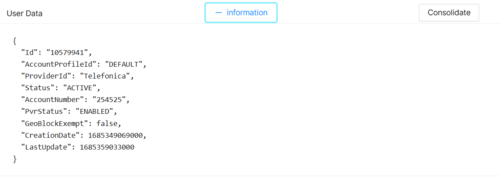
- INFORMATION This button will launch a request to CAS-API and trigger a pop-up with the response, with a readable formatting, for the operator to check.
- Success Example:
- Success Example:
- CONSOLIDATE This button will launch a POST request to CAS-API to consolidate the data, and show a confirmation message, or any error message if that's the case, in a pop-up:
- Success Example:

- Success Example:


User PINS
In this block you can manage User PIN codes. Those codes are created when user self registers though UNIAPI or user is enabled if provisioned though GAL BSS.
There are three PIN types:
- Adult Control: used for Adult contents
- Parental Control: used for Parental level verification.
- Purchase Control: used for Purchase verification.
Each PIN has a PIN value which allows to see the value that the user has configured and Enabled flag, that allows to enable/disable the PIN

Modify a PIN
- You can modify any PIN number and enable/disable each of the PINs.

|

|
Reset PIN
- Use the
 button to set the PIN to 0000 and the enabled flag to false (disabled).

User Rights
User Rights block shows the list of products the user has rights for and that are active. This block shows different information related to the user rights:
- Purchase ID: Internal ID of the purchase
- Product ID: ID of the product
- Product Type: The types of product, that can be:
- TVOD rentals (Movie, Serie, Season, Episode)
- PPV purchases (PPV)
- Subscriptions (Subscription)
- Date Start: Date from the user has rights
- Date End: Date until the user has rights. In case of Subscriptions where recurrence is controlled by GVP (SIA, eWallet), this is the date for the next billing period.
- Purchase Status: Status of the purchase, value can be:
- Active: the purchase is active and the user has active user rights.
- Error: An error occurred during the purchase process.
- Finished: The purchased period is end, of a nonrecurring purchase.
- Trial: The user has made a purchase of product with a trial period configured. After the period, the purchase is changed to active and is billed.
- Canceled: the purchase has been cancelled.
- Cancelling: the purchase has been canceled, but the user still have rights in the purchased period.
- PendingOBActivation: The purchase is pending to be confirmed towards the BSS.
- PendingOBCancellation: The purchase cancellation is pending to be confirmed towards the BSS.
- Pending: For non-billing purchases, the purchase is pending to be notified to the payment gateway.
- Payment Type: Type of payment:
- Billing
- eWallet
- WebPay
- SIA
- AutoRenew: Indicates if this is a recurrent user right (Subscription based)
- Price: The price of the purchase related to this user right.

Playback History
This block shows exactly the time (based on the heartbeats) a user has been playing a media, for both, VOD Contents and Live Contents. So when a user is watching a movie or a program, for example, it will record the time of the movie on this block based on each heartbeat.

Current Playback Sessions
This block display all info of the session, and there is a Action Button, KICK, to request kick session.

User Devices
This block allows you to review all the devices the user has linked with his account. The information available about the device is:
- Creation Date: Date when the device was first registered in the platform.
- Last Update: Date when the device has been updated
- Name: Device name
- Friendly Name: Device friendly name assigned by the user
- Device ID: Unique Device ID used to register the device in the platform
- MAC: Mac address of the device
- Master: Flag that indicates if the device is a Master device (Mediaroom only)
- Status: Indicates if the device is enabled or disabled. A disabled device will request the user to login to continue using that device
- Notification Token: The token used to register for receiving notifications
- Token status: The status of the notification token

You can perform several actions in this block:
Review all the info for a device
Use the  button and you will be taken to the User devices page so you can review extended information about an specific device.
Commands Massive History
This block shows the list of massive commands previously sent for that user's devices

Email Communication
This block allows to review all the emails that have been sent to a specific user as well as resending some of those emails. You can also us the Sent Mail page to review extended information.
Click on the LOAD MESSAGES button so the different emails are loaded.

Send a new email (Remember password / Welcome)
By clicking in the SEND REMEMBER PASSWORD EMAIL button, you can send a new remember password email to the user. This option is only available for users in Active status
A new pop-up window will open for confirmations.

Then, simply click the "OK" button.
User Video Service Info
This block allows you to review extended information about the video service and settings. Some of this information is related only for IPTV users (Mediaroom) but the rest is used for any user type.
- Unique ID: User OSS/BSS Unique ID (Alias)
- Geographic Area: Geographic Area code, used for Channel Maps definition.
- Blackout Area: Blackout area, used for Blackout region definition.
- Time Zone: User Timezone defined by the OSS/BSS
- SD Media Streams : Number of SD streams available
- HD Media Streams: Number of HD streams available
- Service Group: (Mediaroom) Indicates the service group assigned.
- Server Code List: (Mediaroom) Indicates the server code list.
- TimeShift Status Id (Mediaroom) Indicates the status of Mediaroom
- TimeShift Status Date: Flag that indicate (Mediaroom) Indicates the last date when the status was updated.

This block doesn't allow any modifications.
User Interests
This block allows you to review and manage the User interests. The interests can be used to send notifications to users segmented by interests.

Add existing Interests
- Click the
 button and a dialog will open to select an existing Interest.
 - Once finished, save changes by using the
 in the User page and the interest will be removed from that user.


Remove Interests
- Use the
 button to remove the association of an Interest .
 - Once finished, save changes by using the in the User page. This will not delete the interest from the platform. In order to delete the Interest, you will have to go to the Notification Interests Page.

CRM History
In this block it is possible to see all the events related to an user CRM history and status changes are displayed, so it is possible review what CRM actions have been performed to the user. The block displays the different events generated by a the specific user. The events are ordered by creation date (last event first) the last 20 events and will allow to navigate to older events.

No other action is allowed in this block.
User Services
This block shows information about the Services associated to the user. The different services are associated to the users through the subscriptions the user has access to.
- Service ID: Service ID
- Service Name: Name of the Service.
- Required: Pending.
- Requires User Agreement: Shows if that specific services is set to require user agreement.
- Has Access: Shows if the user has access to this service through his current subscriptions.
- Has Accepted Agreement: Shows if the user has accepted the agreement text.

Groups
This block shows Groups the user belongs to. This block allows adding a user to an existing group
- ID: Group ID
- Name: Name of the Group.
- Priority: Shows the priority of the group.
- Settings Partition: Shows the partition parameters that affect this group.

- Click the
 button and a dialog will open to select an existing Group.
User Preferences
This block shows the different preferences that have been configured by the users. The different preferences depend on the different applications, but some examples are:
- LastLanguage
- CatchupServiceActive
- StartOverServiceActive
- AdultFirstAccess

User Tags
This block shows the user tags. For example: what content has the user reproduced, what content has completely visualized, what content has rated, what you have marked as favorite...

User Custom Fields
This block shows the custom fields. These are fields created by the OB for user registration. They are fields that use obs, in addition to the basic fields

User Activities
This block displays the user pin and password change logs.

Actions
| Create | Edit | Edit in List | Bulk Edit | Copy | Copy with Relateds | Delete |
|---|---|---|---|---|---|---|
 |
 |
|
|
|
|
|
 Create

User creation from users page is not allowed. Users can only be created in the platform through two ways:
- OSS/BSS provisioning: Telefonica (billing payment) users are created through OSS/BSS provisioning. Those users will be completely managed from the OB OSS/BSS and the set of actions that can be performed in MIB 3.0 Users page is limited.
- User self registration: Non-Telefonica (no billing payment) users can perform self-registration in the different portals. Only available in Instances where self-registration is configured.
In this case the user will be Non-Telefonica and will be completely managed inside the platform.
 Edit
Edit

User modifications are enabled for some operator profiles (CRM, OB Admin). It can be used to perform modifications in some of the user related data. As it has been already explained before, the user data that can be modified depends on the user type:
- Telefonica users:
- Non-Telefonica users:
 Edit in List

Edit in list is disabled for Users for security reasons. You have to go to Edit Page to perform any modification.
Bulk Edit
Bulk Edit is disabled in the Users page for security reasons. Only single modification is allowed in the Edit Page.
 Copy
Copy

Copy is disabled for users as user creation from MIB is not allowed.
 Copy with Relateds

Copy with Relateds is disabled for users
 Delete

User deletion is not allowed. To disable users, set them to Status = Excluded. They should remain excluded at least for 6 months. If you want to remove some users that have been excluded since more than 6 months, use the Users Cleaner tool.
