Difference between revisions of "Live Series Page Manual 3.0"
| (32 intermediate revisions by 2 users not shown) | |||
| Line 1: | Line 1: | ||
| − | [[Category:Manual]] [[Category:Live TV]] [[Category: | + | [[Category:Manual]] [[Category:Live TV]] [[Category:MIB React]] [[Category:GVP 25.12]] |
{{Menu|Message= [[File:LiveTVIcon.png|middle|30px]] '''Live > Live Series'''}} | {{Menu|Message= [[File:LiveTVIcon.png|middle|30px]] '''Live > Live Series'''}} | ||
| Line 17: | Line 17: | ||
=== Live series elements=== | === Live series elements=== | ||
---- | ---- | ||
| − | [[ | + | [[File:SeriesElementsBlock.png|800px|center|thumb|Series Elements information]] |
<br /> | <br /> | ||
| − | When we select a single element, we can edit and save changes | + | When we select a single element, we can edit and save changes. |
| − | The save function | + | The save function [[File:Save3.png|middle|60px]] verifies and applies the changes for each edited block. |
| − | |||
| − | |||
| − | |||
<br /> | <br /> | ||
=== Basic information === | === Basic information === | ||
| − | This block shows the detail of the works related to the | + | This block shows the detail of the works related to the live serie. |
| − | [[File: | + | [[File:BasicInformationBlockLiveSerie.png|1500px|center|thumb|Basic information Live Serie]] |
| − | |||
| − | |||
| − | |||
| − | |||
| − | |||
<br /> | <br /> | ||
| − | + | {| class="wikitable" style="margin:0px;width:100%;" | |
| − | + | ! style="width:15%;" | Field | |
| − | + | ! style="width:45%;" | Description | |
| − | + | ! style="width:40%;" | Restrictions | |
| − | + | |- | |
| − | + | ! style="text-align:left; border-left:5px solid red;" | Name | |
| − | + | | Internal name for the live serie. | |
| − | + | | | |
| − | + | * Mandatory | |
| − | * | + | |- |
| − | + | ! style="text-align:left;" | Owner | |
| − | + | | Name of creator. | |
| − | + | | | |
| − | + | |- | |
| − | = | + | ! style="text-align:left; border-left:5px solid red;" | Instance |
| − | + | | Instance where the live serie belongs to. | |
| − | + | | | |
| − | + | * Mandatory | |
| − | + | |- | |
| − | + | ! style="text-align:left; border-left:5px solid red;" | Instance Age Rating | |
| − | * | + | | Age rating associated with this live serie. |
| − | + | | | |
| − | + | * Mandatory | |
| − | + | |- | |
| − | + | ! style="text-align:left; border-left:5px solid yellow;" | Live Channel | |
| − | + | | Live Channel associated with this live serie. | |
| − | + | | Read only. | |
| − | + | |- | |
| − | : | + | ! style="text-align:left; border-left:5px solid yellow;" | EPG Series ID |
| − | : | + | | Pending |
| − | + | | Read only. | |
| − | + | |- | |
| − | + | ! style="text-align:left;" | Distributor | |
| − | + | | Live Serie distributor, identifying the provider of the live serie. | |
| − | + | | - | |
| − | + | |- | |
| − | + | ! style="text-align:left;" | Description | |
| − | + | | Description to be displayed to the user | |
| − | + | | | |
| − | + | |- | |
| − | + | ! style="text-align:left;" | Creation Year | |
| + | | Year of production of this content | ||
| + | | | ||
| + | |- | ||
| + | ! style="text-align:left;" | Country | ||
| + | | Which country this live serie it will belong | ||
| + | | | ||
| + | |- | ||
| + | ! style="text-align:left;" | Age Rating Reviewed | ||
| + | | Indicates if the age rating is reviewed. | ||
| + | | | ||
| + | |- | ||
| + | ! style="text-align:left;" | Requires Pin | ||
| + | | Indicates if the Program requires PIN | ||
| + | | | ||
| + | |- | ||
| + | ! style="text-align:left;" | Content Category | ||
| + | | Name of content category associated with the live serie. | ||
| + | | | ||
| + | |- | ||
| + | ! style="text-align:left; border-left:5px solid yellow;" | Source | ||
| + | | Controls the access and visibility of this live serie for other operators. Only operators with rights over this source or its children will be able to see it. | ||
| + | | Read only. | ||
| + | |- | ||
| + | |} | ||
| − | |||
| − | |||
| − | |||
| − | |||
<br /> | <br /> | ||
| − | === | + | === Availability Windows === |
---- | ---- | ||
| − | |||
| − | |||
| − | |||
| − | + | [[File:GenresBlock.png|thumb|Genres block|center|1500px]] | |
| − | |||
| + | This block is a read-only component, therefore we cannot add or remove items through the MIB. | ||
<br /> | <br /> | ||
<br /> | <br /> | ||
| − | === | + | === Images === |
---- | ---- | ||
This block allows you to manage the images associated to the live channel and the information associated, such as the Type and Quality. | This block allows you to manage the images associated to the live channel and the information associated, such as the Type and Quality. | ||
Also, the preview of all the associated images is displayed. It's possible to select/deselect all associated images and remove them. | Also, the preview of all the associated images is displayed. It's possible to select/deselect all associated images and remove them. | ||
| − | [[File:LiveChannelImagesBlock.png|thumb|center| | + | [[File:LiveChannelImagesBlock.png|thumb|center|1500px|Images block]] |
<br /> | <br /> | ||
'''Add new images''' | '''Add new images''' | ||
| − | [[File: | + | * Use the [[File:AddNew.png|middle|90px]] button a new form will be open with a new form. |
| − | + | [[File:AsideAddNewImage.png|middle|500px]] | |
| − | * Then click the [[File:UploadIcon.png|middle| | + | * Then click the [[File:UploadIcon.png|middle|50px]] button on File field, a dialog will be open so you will be able to select the image to be uploaded. |
| + | [[File:UploadImageForm.png|middle|500px]] | ||
* Now select the subtitle language and a name for the subtitle. | * Now select the subtitle language and a name for the subtitle. | ||
| − | *Once finished, save changes by using the [[File:Save3.png|middle| | + | *Once finished, save changes by using the [[File:Save3.png|middle|60px]] in the live channels page and the subtitle will be associated. |
<br /> | <br /> | ||
<br /> | <br /> | ||
'''Add existing images''' | '''Add existing images''' | ||
| − | * Click the [[File:AddExisting.png|middle| | + | * Click the [[File:AddExisting.png|middle|90px]] button and a dialog will open to select and existing image. |
| − | *Once finished, save changes by using the [[File:Save3.png|middle| | + | *Once finished, save changes by using the [[File:Save3.png|middle|60px]] in the live channels page and the image will be associated.<br /> |
<br clear=all> | <br clear=all> | ||
<br /> | <br /> | ||
| − | |||
'''Remove images''' | '''Remove images''' | ||
* Use the [[File:DeleteRed3.png|middle|30px]] button to remove the association of a image from the movie . | * Use the [[File:DeleteRed3.png|middle|30px]] button to remove the association of a image from the movie . | ||
| − | * Once finished, save changes by using the [[File:Save3.png|middle| | + | * Once finished, save changes by using the [[File:Save3.png|middle|60px]] in the live channel page. This will not delete the image file from the platform. In order to delete the image, you will have to go to the [[Images_Page_Manual_3.0|Images Page]]. |
<br /> | <br /> | ||
'''Preview images'''<br /> | '''Preview images'''<br /> | ||
| − | By clicking in the [[File:Preview.png|30px]] button in each image, you can access to the image preview. | + | * By clicking in the [[File:Preview.png|30px]] button in each image, you can access to the image preview. |
| + | [[File:ImagePreview.png|thumb|Image preview|left|border|120px]] | ||
| + | <br clear=all> | ||
| + | |||
| + | <br /> | ||
| + | '''Download Images'''<br /> | ||
| + | By clicking in the [[File:DownloadImage.png|60px]] button in each image, you can download the image. | ||
<br clear=all> | <br clear=all> | ||
| + | <br /> | ||
| + | |||
| + | === Genres === | ||
| + | ---- | ||
| + | In this block, you can manage the genres associated to the live serie. It shows you the list of genres that are currently associated to this live serie. | ||
| + | The order of genres is important, as most important genres are the first ones (this order will be kept when exporting them in catalog exporter). | ||
| + | |||
| + | [[File:GenresBlock.png|thumb|Genres block|center|1500px]] | ||
| + | |||
| + | '''Associate new genres''' | ||
| + | * Click on Select Add Related and choose Select Existing [[File:AddExisting.png|middle|90px]] button and a multiple genre selection dialog will open, allowing you to search and select genres that can be added. | ||
| + | * Select the genres to be added and press the [[File:Save3.png|middle|60px]] button. The genres will be added to the live serie. | ||
| + | *To save changes, press the [[File:Save3.png|middle|60px]] in the live serie page. | ||
| + | <br /> | ||
| + | |||
| + | '''Delete genres from the live serie''' | ||
| + | * Use the [[File:DeleteRed3.png|middle|30px]] button to remove all the genres desired. | ||
| + | *Once finished, save changes by using the [[File:Save3.png|middle|60px]] in the live serie page. | ||
| + | <br /> | ||
| + | <br /> | ||
| + | |||
| + | === Persons Roles === | ||
| + | ---- | ||
| + | This block allows configuring the persons (actors, director and etc) and their roles that are involved in the live serie: | ||
| + | |||
| + | <br /> | ||
| + | [[File:PersonsRolesBlockLiveSeries.png|thumb|center|Person roles block|1500px]] | ||
| + | |||
| + | <br /> | ||
| + | '''Associate new Person role''' | ||
| + | * Click on Select Add Related and choose Select Existing. [[File:AddExisting.png|middle|90px]] button and a multiple Person Role selection dialog will open, allowing you to search and select persons roles to be added. | ||
| + | * Select the ones to be added and press the [[File:Save3.png|middle|60px]] button. The Person Roles will be added to the live serie. | ||
| + | * To save changes, press the [[File:Save3.png|middle|60px]] in the live serie page. | ||
| + | Note: From this menu, it is not possible to create new Person Roles. Please use the [[Persons_Page_Manual_3.0|Persons page]] to create Persons and the [[Person_Roles_Page_Manual_3.0|Person Roles page]] to associate a role to them. | ||
| + | <br /> | ||
| + | <br /> | ||
| + | '''Delete Person roles from the movie''' | ||
| + | * Use the [[File:DeleteRed3.png|middle|30px]] button to remove all the person roles desired. | ||
| + | * Once finished, save changes by using the [[File:Save3.png|middle|60px]] in the live serie page. | ||
| + | <br /> | ||
| + | |||
| + | === Age descriptors === | ||
| + | ---- | ||
| + | <br /> | ||
| + | [[File:AgeDescriptorsBlock.png|1500px|center|thumb|Age Descriptors block]] | ||
| + | <br /> | ||
| + | '''Associate new Age descriptors''' | ||
| + | * Click on Select Add Related and choose Select Existing [[File:AddExisting.png|middle|90px]] button and a multiple Age descriptor selection dialog will open, allowing you to search and select Age descriptor that can be added. | ||
| + | * Select the Age descriptor to be added and press the [[File:Save3.png|middle|60px]] button. The Age descriptor will be added to the live serie. | ||
| + | *To save changes, press the [[File:Save3.png|middle|60px]] in the live serie page. | ||
| + | <br /> | ||
| + | |||
| + | '''Delete Age descriptors from the live serie''' | ||
| + | * Use the [[File:DeleteRed3.png|middle|30px]] button to remove all the Age descriptor desired. | ||
| + | *Once finished, save changes by using the [[File:Save3.png|middle|60px]] in the live serie page. | ||
| + | <br /> | ||
| + | <br /> | ||
<br /> | <br /> | ||
| Line 156: | Line 228: | ||
|} | |} | ||
| − | === [[File:New3.png|middle| | + | === [[File:New3.png|middle|70px]] Create === |
Live Channel creation is not allowed to be done from MIB. Live Channels can only be created through EPG ingestion. | Live Channel creation is not allowed to be done from MIB. Live Channels can only be created through EPG ingestion. | ||
<br /> | <br /> | ||
Latest revision as of 11:11, 31 December 2025

Access to this menu in Betools through:  Live > Live Series
Contents
The Series page is a variation of the Live page. Its purpose it to make it easier and more visual to Edit Series, Seasons, Episodes and its relationships.
This page brings a new element: the treeview. In this block it is possible to see the hierarchy between all the elements that belong to a Series. The page allows to edit one or more elements at once, by selecting them on the tree view. whenever more than element is selected the editing blocking will automatically enter in bulk edit mode.
There is also a Warning block, which runs a series of validations and display the conflicts to the user.
Only one information block can be edited at a certain time, so have in mind to save the current changes before moving to another block.
Blocks
Live series elements

When we select a single element, we can edit and save changes.
The save function  verifies and applies the changes for each edited block.
Basic information
This block shows the detail of the works related to the live serie.

| Field | Description | Restrictions |
|---|---|---|
| Name | Internal name for the live serie. |
|
| Owner | Name of creator. | |
| Instance | Instance where the live serie belongs to. |
|
| Instance Age Rating | Age rating associated with this live serie. |
|
| Live Channel | Live Channel associated with this live serie. | Read only. |
| EPG Series ID | Pending | Read only. |
| Distributor | Live Serie distributor, identifying the provider of the live serie. | - |
| Description | Description to be displayed to the user | |
| Creation Year | Year of production of this content | |
| Country | Which country this live serie it will belong | |
| Age Rating Reviewed | Indicates if the age rating is reviewed. | |
| Requires Pin | Indicates if the Program requires PIN | |
| Content Category | Name of content category associated with the live serie. | |
| Source | Controls the access and visibility of this live serie for other operators. Only operators with rights over this source or its children will be able to see it. | Read only. |
Availability Windows

This block is a read-only component, therefore we cannot add or remove items through the MIB.
Images
This block allows you to manage the images associated to the live channel and the information associated, such as the Type and Quality.
Also, the preview of all the associated images is displayed. It's possible to select/deselect all associated images and remove them.

Add new images
- Use the
 button a new form will be open with a new form.

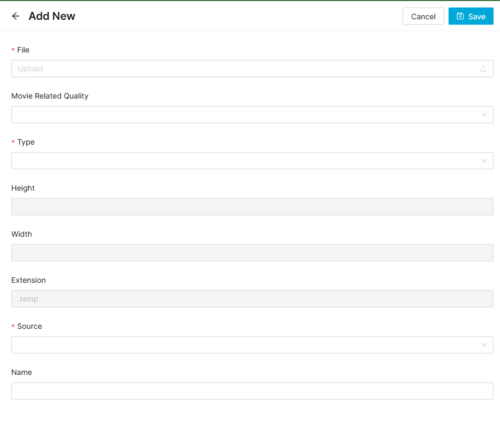

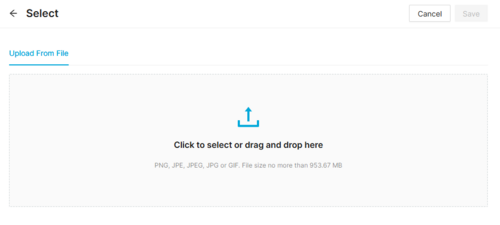
- Then click the
 button on File field, a dialog will be open so you will be able to select the image to be uploaded.


- Now select the subtitle language and a name for the subtitle.
- Once finished, save changes by using the
 in the live channels page and the subtitle will be associated.
Add existing images
- Click the
 button and a dialog will open to select and existing image.
 - Once finished, save changes by using the in the live channels page and the image will be associated.

Remove images
- Use the
 button to remove the association of a image from the movie .
 - Once finished, save changes by using the in the live channel page. This will not delete the image file from the platform. In order to delete the image, you will have to go to the Images Page.

Preview images
- By clicking in the
 button in each image, you can access to the image preview.


Download Images
By clicking in the  button in each image, you can download the image.
Genres
In this block, you can manage the genres associated to the live serie. It shows you the list of genres that are currently associated to this live serie. The order of genres is important, as most important genres are the first ones (this order will be kept when exporting them in catalog exporter).
Associate new genres
- Click on Select Add Related and choose Select Existing button and a multiple genre selection dialog will open, allowing you to search and select genres that can be added.
- Select the genres to be added and press the button. The genres will be added to the live serie.
- To save changes, press the in the live serie page.
Delete genres from the live serie
- Use the button to remove all the genres desired.
- Once finished, save changes by using the in the live serie page.
Persons Roles
This block allows configuring the persons (actors, director and etc) and their roles that are involved in the live serie:

Associate new Person role
- Click on Select Add Related and choose Select Existing. button and a multiple Person Role selection dialog will open, allowing you to search and select persons roles to be added.
- Select the ones to be added and press the button. The Person Roles will be added to the live serie.
- To save changes, press the in the live serie page.
Note: From this menu, it is not possible to create new Person Roles. Please use the Persons page to create Persons and the Person Roles page to associate a role to them.
Delete Person roles from the movie
- Use the button to remove all the person roles desired.
- Once finished, save changes by using the in the live serie page.
Age descriptors

Associate new Age descriptors
- Click on Select Add Related and choose Select Existing button and a multiple Age descriptor selection dialog will open, allowing you to search and select Age descriptor that can be added.
- Select the Age descriptor to be added and press the button. The Age descriptor will be added to the live serie.
- To save changes, press the in the live serie page.
Delete Age descriptors from the live serie
- Use the button to remove all the Age descriptor desired.
- Once finished, save changes by using the in the live serie page.
Actions
| Create | Edit | Edit in List | Bulk Edit | Copy | Copy with Relateds | Delete |
|---|---|---|---|---|---|---|
 |
 |
|
|
|
|
|
 Create

Live Channel creation is not allowed to be done from MIB. Live Channels can only be created through EPG ingestion.
 Edit
Edit

Live channel modifications are enabled for some operator profiles (EPG Manager, OB Admin). It can be used to perform modifications in some of the Live Channel related data.
 Edit in List

Edit in list is disabled for Live Channels for security reasons. You have to go to Edit Page to perform any modification.
Bulk Edit
Bulk Edit is disabled in the Live Channels page.
 Copy
Copy

Copy is disabled for Live Channels as their creation from MIB is not allowed.
 Copy with Relateds

Copy with Relateds is disabled for Live Channels page.
 Delete

Delete is disabled for Live Channels page.
