Enablers Page Manual

Access to this menu in Betools through:  Customer Experience > CX Settings > Enablers
Contents
This page allows Global Operation Teams to operate the list of enablers from GVP_ENABLERS table.
Notes to operators:
There is a single list of enabler for all OBs.
Recommended Source: ROOT
Blocks
Enablers

| Field | Description | Restrictions |
|---|---|---|
| Name | Name for this Enabler, for internal use only. |
|
| Enabler ID | Id sent by the application and used by the frontend in order to filter the settings that can be shown to a customer. |
|
| Is Backend | Is backend or not | Warning when changing: Changing from true to false shows warning: any Criteria configured will be ignored by the backend. |
| Source | Choose a source that provide access to all instances that share this enabler. |
|
| Criteria | Enter a valid json with the conditions that will be evaluated by the backend to calculate if a customer is entitled with this enabler. | - |
| Owner | Operator that created this Enabler | Read Only |
Actions
| Create | Edit | Edit in List | Bulk Edit | Copy | Copy with Relateds | Edit History | Delete |
|---|---|---|---|---|---|---|---|
 |
|
|
|
|
|
 |
|
 Create

Enabler creation is enabled by default for most of the Content operator profiles.
- Use the button to create an empty Enabler .
- Fill all the Enabler data.
- Once finished, save changes by using the
 button in the Enabler page.
 Edit
Edit

Enabler edit is enabled by default for most of the operator profiles. It can be used to perform modification in the Enabler data and related information. Once finished modifying the Enabler, save changes by using the  button in the Enabler page.
 Edit in List

Edit in list is enabled for Enablers, allowing the operator to Edit basic fields from the list view. You can modify the Name and Enabler ID fields and you can also delete any Enabler by clicking on the  button. Once finished, save changes by using the button in the Enabler page.
Bulk Edit
Bulk Edit is enabled for Enablers, allowing you to modify several Enablers at the same time.
 Copy
Copy
Copy is enabled for Enablers. Using the  button, you will be able to clone the basic information from the Enabler into a new Enabler. The relateds will not be copied using this mode.
Once the Enabler is copied, review that all the fields have been copied properly and press Save button.
button, you will be able to clone the basic information from the Enabler into a new Enabler. The relateds will not be copied using this mode.
Once the Enabler is copied, review that all the fields have been copied properly and press Save button.
 Copy with Relateds
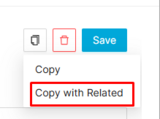
Copy with Related is enabled for Enabler. Using the  button, you will be able to clone a Enabler and the related blocks into a new Enabler.
Once the Enabler is copied, review that all the fields have been copied properly and press Save button.
 Edit History

Edit History is disabled of Enablers.
 Delete
You can delete a Enabler either from the Edit in List or from the Enabler page, using the  button. A confirmation popup will be shown before excluding it.
